Wedding Photo Album with a QR Code: The Complete Guide to Guest Photos (2026)
How to gather your guests' photos into a wedding photo album with a QR code: setup, placement, uploading without an app, privacy, and what a free plan really covers.
by CălinUpdated: 14 min
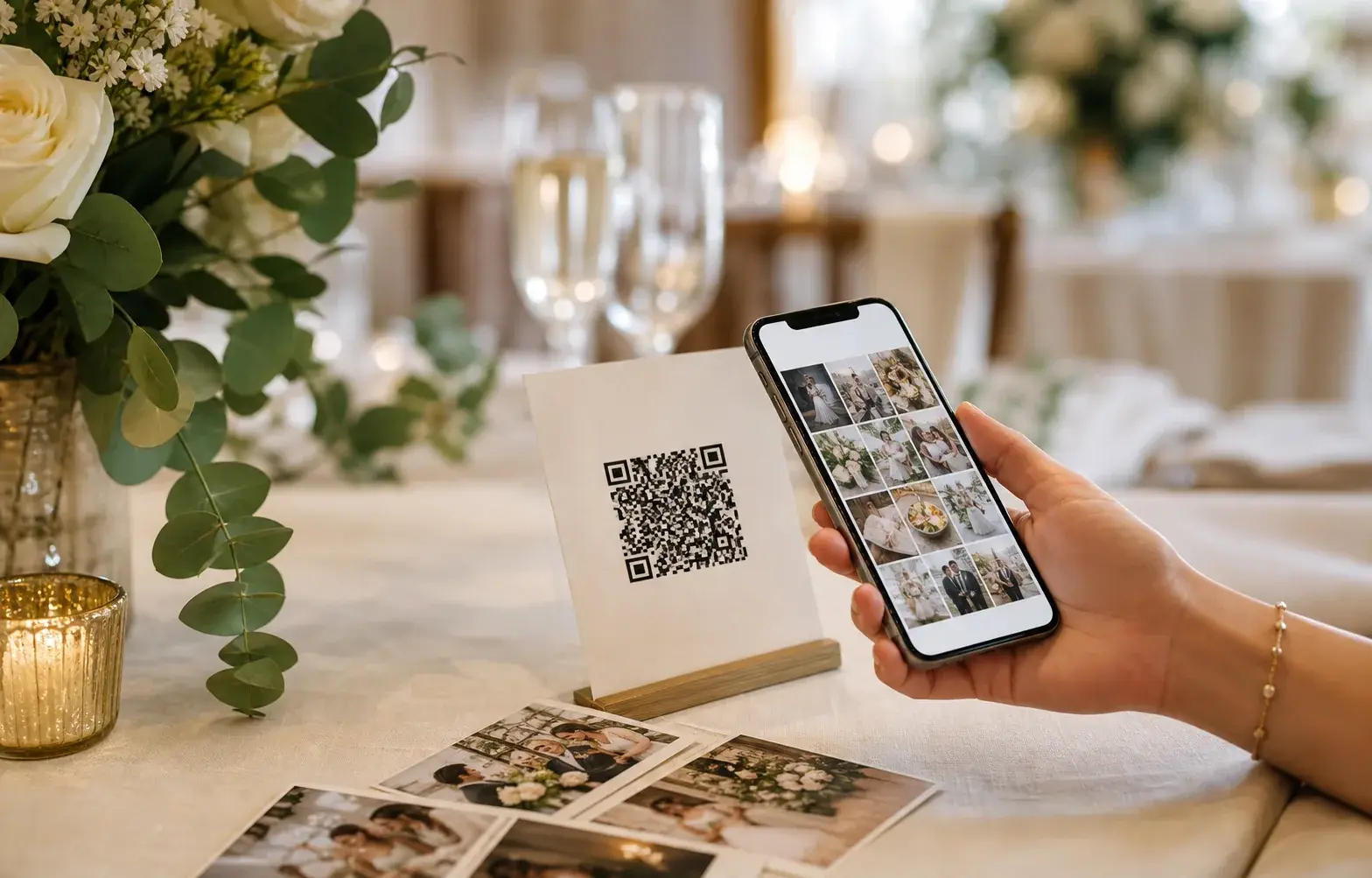
The photographer goes home with their own cards. The shots the guests took stay where they were taken: on their phones. The preparations caught by the bridesmaids, a toast filmed from the front row, children asleep across two chairs, the dance floor after midnight.
A wedding photo album with a QR code deals with exactly that part. Guests scan a code on the table, upload photographs straight from the browser, and the contributions land in the same gallery, tied to your event, instead of being collected one conversation at a time.
In this guide we explain how a collaborative event photo album works, how to prepare the QR code, what a free plan actually gives you and what to check before printing it.
What a wedding photo album with a QR code is
It is a digital gallery tied to your event. The QR code does not contain the photos; it opens the upload page. Each guest picks photographs from their phone and sends them from the browser, without installing an app.
For the couple, the advantage is simple: every file arrives in the same place and stays associated with the wedding. For guests, uploading happens in the browser, in a few taps.
An album like this complements the professional gallery rather than replacing it. The photographer delivers carefully selected and edited images; guests can add the shots taken from their own angles.
How it works, step by step
1. You create the event and the gallery
You start from the ImagoMoments shared photo albums page, create the event and set up the space the contributions will land in. If you are already using a digital wedding invitation, the invitation, the confirmations and the photographs can all stay tied to the same event.
2. You generate the QR code
The platform creates a unique code for your wedding. You download it and place it in the design of the table cards, the menu or a display panel. Before printing, scan it from two different phones and check that it opens the right page.
3. Guests scan and upload
The guest scans the code, opens the event page and picks the photographs they want to send. Uploading happens in the browser and involves an account, not an app installed for a single evening.
4. The event team uploads to the same album
Alongside the hosts, an event can also have members: the photographer, the videographer, the photo booth and the wedding planner. They upload straight into the event's album, so the professional delivery and the guests' shots do not end up in separate archives.
5. Collection stays open after the party
At ImagoMoments, guests can upload while the event is active and during a grace window after it completes. Anyone who did not get round to it on the night can still add their photographs later.
What a free QR code for your wedding photos actually covers
Plenty of pages promise a free QR code for wedding photos. The code is, technically, an image that encodes a link. What you pay for, when you pay, sits at the other end of the link: the hosted album, its capacity, how long it stays open and the panel you administer it from.
So it helps to separate three different things that travel under the same "free" label:
- The code itself. Planning.Wedding states plainly that it does not charge you to create the wedding site or to generate your own unique QR code.
- An included capacity. The same source also includes storage for the first 30 photographs in the gallery at no charge. Above that you need the premium service, which raises the ceiling to 1000 photographs.
- A set of free features inside a larger product. JoinMyMoment presents some features as free with any plan, among them voice messages and Google Photos syncing, and others as paid options, among them unlimited photos and live video moments. The page confirms you can start for free, but it does not fully delimit what the free plan includes.
When you read an offer, work out which of the three the word is describing. A free code next to a 30 photo album is not the same thing as a free album.
The limits a free plan can carry
The limits sit on different pages for each provider, so they are worth collecting one by one. There are seven dimensions to track:
- The number of photographs. Planning.Wedding documents 30 photographs on the free option and up to 1000 on premium. JoinMyMoment documents a configurable range, between 5 and 25 photographs per guest, without saying whether that range belongs to the free plan only.
- How long collection stays open. At JoinMyMoment, an event can be set to run for a maximum of 15 days.
- Retention after the event. Also at JoinMyMoment, the photographs stay stored for a further 60 days after the event ends, and the whole gallery can be downloaded from a single button during that time. Keepitcloud ties access to the package you buy, between 3 months and 1 year from the event, with the option to extend it for a fee.
- Download resolution. Keepitcloud states that uploaded files keep their original quality and are downloaded the same way. Planning.Wedding documents a bulk download into a single ZIP archive, but the page does not say at what resolution. That is exactly the sort of detail to settle beforehand rather than afterwards.
- Moderation. JoinMyMoment says the owner can view and delete images at any time, during and after the event. The page documents deletion, not an approval step before publication, so if you want photographs approved first, ask for that answer explicitly.
- Branding. Weddie.app describes its gallery as carrying no ads and no third party logos, but it does so for a paid offer. The absence of a provider's logo is a selling point, then, not an implicit guarantee of any free plan.
- Access and privacy. Keepitcloud describes a gallery visible only to whoever holds the link, with an optional password. JoinMyMoment can restrict access to authenticated guests or to particular email domains. Planning.Wedding lets you choose who uploads: anyone, nobody, or a specific group.
Do the arithmetic in advance rather than on the night. Assume, as an exercise, 80 guests, half of them uploading something and 10 photographs each: that comes to 400 files, more than 13 times the free 30 photograph ceiling Planning.Wedding documents. The same 400 files fit comfortably into a 1000 photograph plan, but only if that plan is active on the wedding day rather than the morning after.
How to compare a free option against a paid one properly
A useful comparison is not between amounts, it is between what each plan unlocks. Provider pages handle these dimensions one at a time, in different places, so the table below gathers them together. Fill it in for every service you are considering.
| Criterion | What to ask exactly | Examples from providers' public pages |
|---|---|---|
| Number of photographs | How many photos does the free option include, and what happens above that? | 30 free, up to 1000 on premium (Planning.Wedding) |
| Collection window | How long does uploading stay open? | up to 15 days for one event (JoinMyMoment) |
| Retention after the event | How long do I keep access to the files, and can I extend it? | a further 60 days after the end (JoinMyMoment); between 3 months and 1 year depending on the package, extendable (Keepitcloud) |
| Download resolution | Do I get the originals or compressed versions? | original quality stated on upload and download (Keepitcloud); a ZIP archive with no resolution stated (Planning.Wedding) |
| Moderation | Can I approve photos before publication, or only delete them afterwards? | deletion by the owner, at any time (JoinMyMoment) |
| Branding | Does the provider's logo appear in the gallery? | no ads and no third party logos, in a paid offer (Weddie.app) |
| Access and uploading | Who opens the gallery, and who can upload? | link, optionally with a password (Keepitcloud); authenticated guests or specific email domains (JoinMyMoment); everyone, nobody or a chosen group (Planning.Wedding) |
The second good habit is to split what you pay across three lines instead of looking at one number: one line for the code, one for hosting the album with its included capacity, and one for administration, meaning extended access, extra space or the organising features. Plenty of offers look identical on the first line and differ completely on the third.
At ImagoMoments the model is a single payment per event, with no monthly subscription; the current options live on the prices and packages page. If you want the same reasoning applied to the invitation side, we wrote it up separately in the free versus paid guide.
When free is enough, and when a paid plan earns its place
A free option does the job honestly in a fairly clear set of situations:
- the party is small and you expect a photo count below the included ceiling;
- you want collection open for the day itself and a few days afterwards;
- you download everything quickly and keep the originals yourself, on a drive or in your own cloud;
- deleting an unsuitable photograph afterwards is enough for you, rather than approving it first;
- the gallery is a pleasant extra, not where you intend to keep these memories for years.
A paid plan earns its place when one of the following genuinely matters to you:
- you want the guests' photographs and the photographer's delivery in the same event; at ImagoMoments the photographer, videographer, photo booth and wedding planner can be added as members who upload straight into the event's album;
- you want each guest to find their own photographs through face matching, available on the premium package;
- you want albums organised automatically, a feature included in the packages with the photo gallery;
- you need uploading to stay open after the party: at ImagoMoments guests can upload while the event is active and during a grace window after it completes.
One marker that is simpler than any table: if the answer to "where will these photographs be in two years?" is "no idea", settle that now, while you can still choose, and not in the week something expires.
Where to put the QR code so it actually gets used
Our recommendation is not to rely on a single access point. A few places worth considering:
- On every table: a standing card stays in view for the whole meal.
- Next to the guest book: it sits alongside the other ways of leaving a memory.
- At the bar or beside the photo booth: two more spots where the code can sit in plain sight.
- On the room's screen: a short slide between moments in the schedule can carry the code and the instruction.
- In the message the next day: send the direct link to anyone who did not scan the code at the party.
Do not leave the code on its own. Add a short instruction beside it, for example "Scan and add your photos to our album", rather than a generic label. Keep strong contrast between the code and the background, enough white space around it and a size that scans without holding the phone right up to it.
What to prepare before the wedding
Do a full trial a week ahead, not just a quick scan. Upload a photograph, check that it appears in the event gallery and ask someone who does not know the platform to try it. If they need extra explanation, rewrite the instruction on the card.
Save the direct link as well. The QR code is convenient in the room, while the link suits the message sent after the event better. Both lead to the same gallery, so you are not creating parallel collections.
If the invitation has not gone out yet, you can build the album into the planning of the whole flow. The guide to digital wedding invitations explains the link between the event page, RSVP and communicating with guests, and the article on choosing the right invitation helps you keep the same visual style from the invitation through to the QR card.
Privacy: the questions worth asking
Wedding photographs are personal, so a good album has to give the host control and give guests clear explanations. Check these things before choosing a platform:
- Do uploads become public automatically, or are they reviewed by the organiser first?
- Can you decide separately who sees each album?
- Where are the photographs hosted and how long are the originals kept?
- If face matching exists, is it optional and based on consent?
- When are the selfie and the biometric data used for matching deleted?
At ImagoMoments, face matching is part of the premium package and starts from a selfie the guest submits themselves: the result is a gallery of their own, holding the photographs they appear in. For how the data is processed, read the privacy policy.
After the wedding: from thousands of files to albums that are easy to revisit
Collecting is only the first half of the process. In the packages with the photo gallery, smart albums organise the collected photographs automatically, so you are not starting from an unsorted pile of files.
Then, with face matching on the premium package, each guest can search for their photographs with a selfie and receives a gallery of their own, including group shots and moments where they are in the background. That spares the couple from sending dozens of selections by hand after the wedding.
Quick checklist
- Create the gallery and download the QR code.
- Test scanning and a real upload on at least two phones.
- Put a short instruction next to the code.
- Print several access points rather than a single poster.
- Keep the direct link for the message after the wedding.
- Check what moderation options your chosen service offers.
- Tell guests clearly what becomes visible and how the privacy options work.
- Check the photo ceiling and the access period included in the option you pick.
- Download the originals within the access period included in your chosen service.
An album that starts on the wedding night itself
The liveliest photographs are not always the perfectly framed ones. They are the shots taken by the people who lived the moment beside you. A QR code gives everyone a short route to the same gallery.
You can create the event photo album before the wedding, test the code and prepare the cards in good time. And if the terms "online", "digital" and "electronic" still seem confusing while you plan, the guide on how a digital invitation works clarifies the whole journey for guests.
Frequently asked questions
Do guests have to install an app to upload photos?
No. They scan the QR code with their phone camera, open the event page in the browser and choose the photographs they want to upload. Uploading involves an account but no installed app, and the same code works for every guest.
Where should the QR code for wedding photos be placed?
Our recommendation is not to leave it in a single spot: a card on each table, next to the guest book, at the bar and on a panel near the dance floor. Add a short instruction as well, not just the code.
Who else can upload to the event album besides the guests?
Alongside the hosts, an ImagoMoments event can also have members: the photographer, the videographer, the photo booth and the wedding planner. They upload straight into the event's album, so the professional delivery lands in the same place as the guests' photographs.
How does each guest find the photos they appear in?
Through face matching, included in the ImagoMoments premium package. The guest submits a selfie, and the event photographs they appear in are gathered into a gallery of their own, without the couple sending anything by hand.
How many photos can guests upload on a free plan?
It depends on the service, so it is worth checking before you print anything. Planning.Wedding includes storage for 30 photographs in the gallery at no charge and raises the ceiling to 1000 on its premium service, while JoinMyMoment documents a configurable range of 5 to 25 photographs per guest. Read what each page says about going over the limit as well.
Can the album or the link expire after the wedding?
With some services, yes. JoinMyMoment lets an event run for up to 15 days and keeps the photographs for a further 60 days after it ends, while Keepitcloud ties access to the package you buy, between 3 months and 1 year from the event, with the option to extend. At ImagoMoments, guests can upload while the event is active and during a grace window after it completes.
Can I download every photo at its original resolution?
Ask this one explicitly, because provider pages do not answer it the same way. Keepitcloud states that uploaded files keep their original quality and are downloaded the same way, while Planning.Wedding describes downloading every image in a single ZIP archive without stating the resolution. If the album will be the only copy of some shots, get the answer before the event.